
Blog
Sticky MacBook Keyboard: The Complete Guide From the Repair Bench

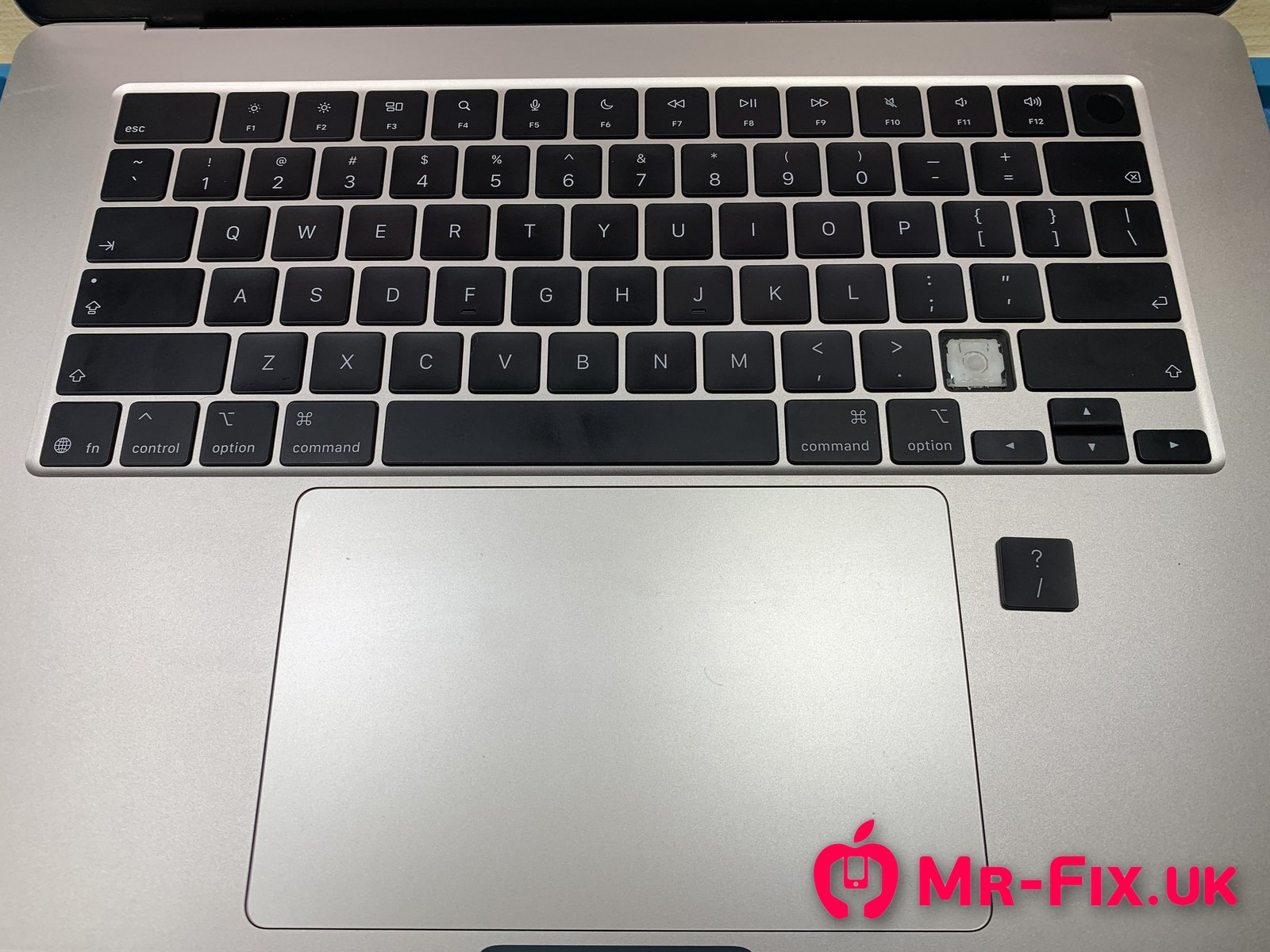
How every MacBook key works, each fault and its fix, what to do after a spill, and Apple's top-case rule vs a proper clean, shown on a MacBook Air M5 we've just finished fixing.
⏱ 19 min readIn short
- ⚠️ Just spilled something? Act fast, and get the inside cleaned first. Liquid that reaches the logic board (the main circuit board) can cause far bigger and more expensive damage than sticky keys, so a professional internal clean is the first and vital step; the keyboard clean in this guide comes second. We’ll explain liquid damage in full in our upcoming guide. Until then, read the three facts every owner should know.
- Sugary drinks glue MacBook keys together. The water under the keys dries out fast: every keycap is small and open on all four sides, so air reaches it easily. The sugar stays behind as a tacky film on the tiny parts under every key.
- Each key is a tiny machine: the keycap, a scissor mechanism, metal hooks, a rubber dome and the circuit layer underneath. The keycap hangs on tiny plastic pins thinner than a fingernail.
- Apple’s repair route for a faulty keyboard ends in a whole new top case. Its own guide even says not to remove a scissor mechanism unless it’s broken, so cleaning them isn’t part of it.
- A sticky keyboard can usually be cleaned, not replaced. We took every affected key off this MacBook Air 15-inch M5 (model A3448), and in the end every other key too, cleaned each part and rebuilt the keyboard.
- After a spill: power off, unplug, keep it off, and bring it to us fast for a liquid damage clean, then a full assessment. Don’t switch it back on “to see if it works”, and skip the rice. Here is why it is vitally important.
- Every repair carries our 3-month warranty, with an optional 1-year extended warranty.
In this article
- How a MacBook key works, part by part
- Why does a sugary spill make MacBook keys sticky?
- How we fixed this MacBook Air keyboard, step by step
- Spilled a drink on your MacBook? What to do in the first 10 minutes
- How Apple treats a sticky keyboard, and how we do it differently
- Clean the keyboard or replace it?
- FAQ
- Sticky keys on an HP, Dell, Lenovo or other laptop?
- The one thing to remember
This MacBook Air came to us a few months old, with a keyboard that had stopped behaving like a keyboard. Some keys stuck down. Some came back up slowly. The cause was a sweet drink spilled across the keys.
It’s one of the most common things we see on laptops, and one of the most misunderstood. By the end of this article you’ll know what sugar actually does under a key, how we fixed this one, and the one thing most people do right after a spill that turns a keyboard clean into a much bigger repair.
The MacBook Air 15-inch M5 as it arrived on our bench: one keycap already off and keys that stuck or didn't respond.
How a MacBook key works, part by part
Every key on a modern MacBook Air or MacBook Pro is a tiny machine. You press the keycap, a scissor mechanism keeps it level, a rubber dome pushes it back up, and the dome presses a contact in the circuit layer below, which sends the letter to the computer. Know these parts and you know every way a key can fail, and how each one is fixed.
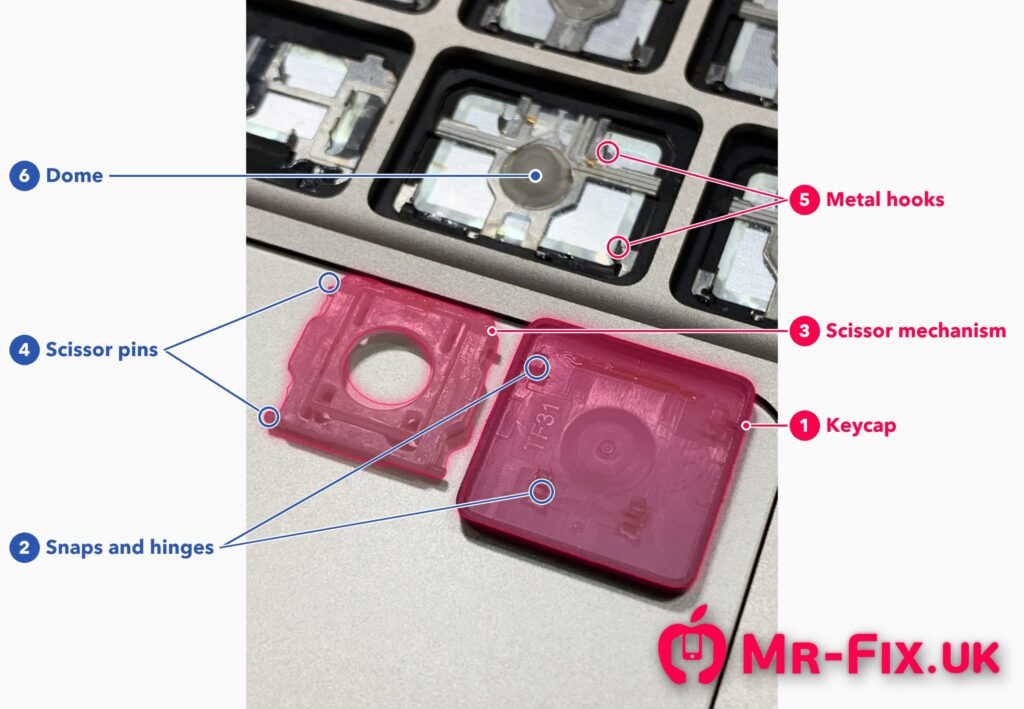
What is under each key?
- The keycap is the black square you touch. Underneath, tiny plastic snaps and hinges (we call them pins) clip it onto the scissor.
- The scissor mechanism is a small plastic frame with two arms that cross like an X. It keeps the key level, even if you press its corner.
- The metal hooks are part of the keyboard plate. The scissor clips into them and slides along them as the key moves.
- The rubber dome in the middle works like a spring. It pushes the key back up, and when you press, it closes the contact underneath.
- The circuit layer sits below the domes: a thin membrane that registers each press, held flat by a metal reinforcing plate, with a ribbon (flex) cable to the logic board. The backlight sits underneath it as a separate unit with its own dedicated cable.
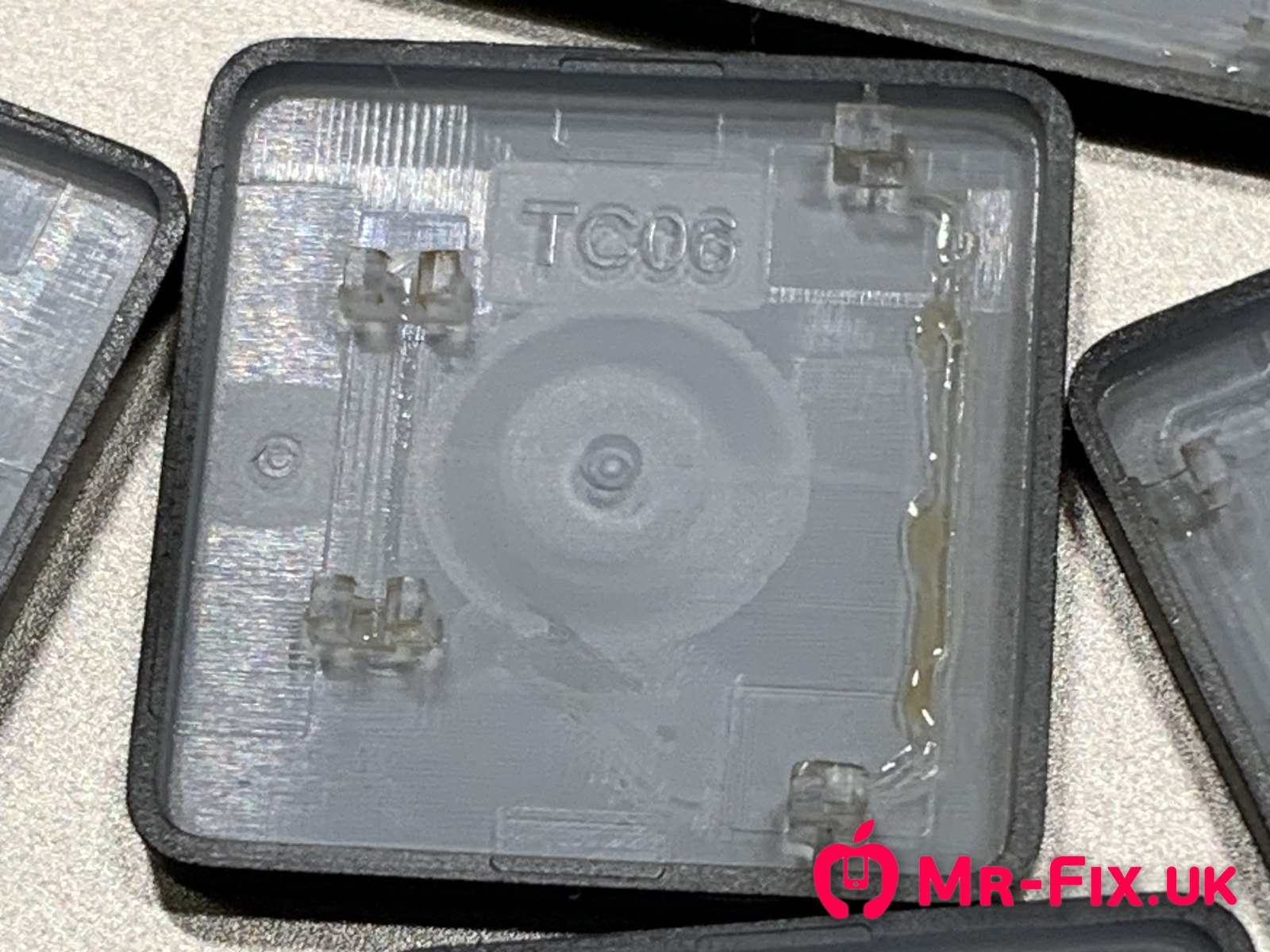
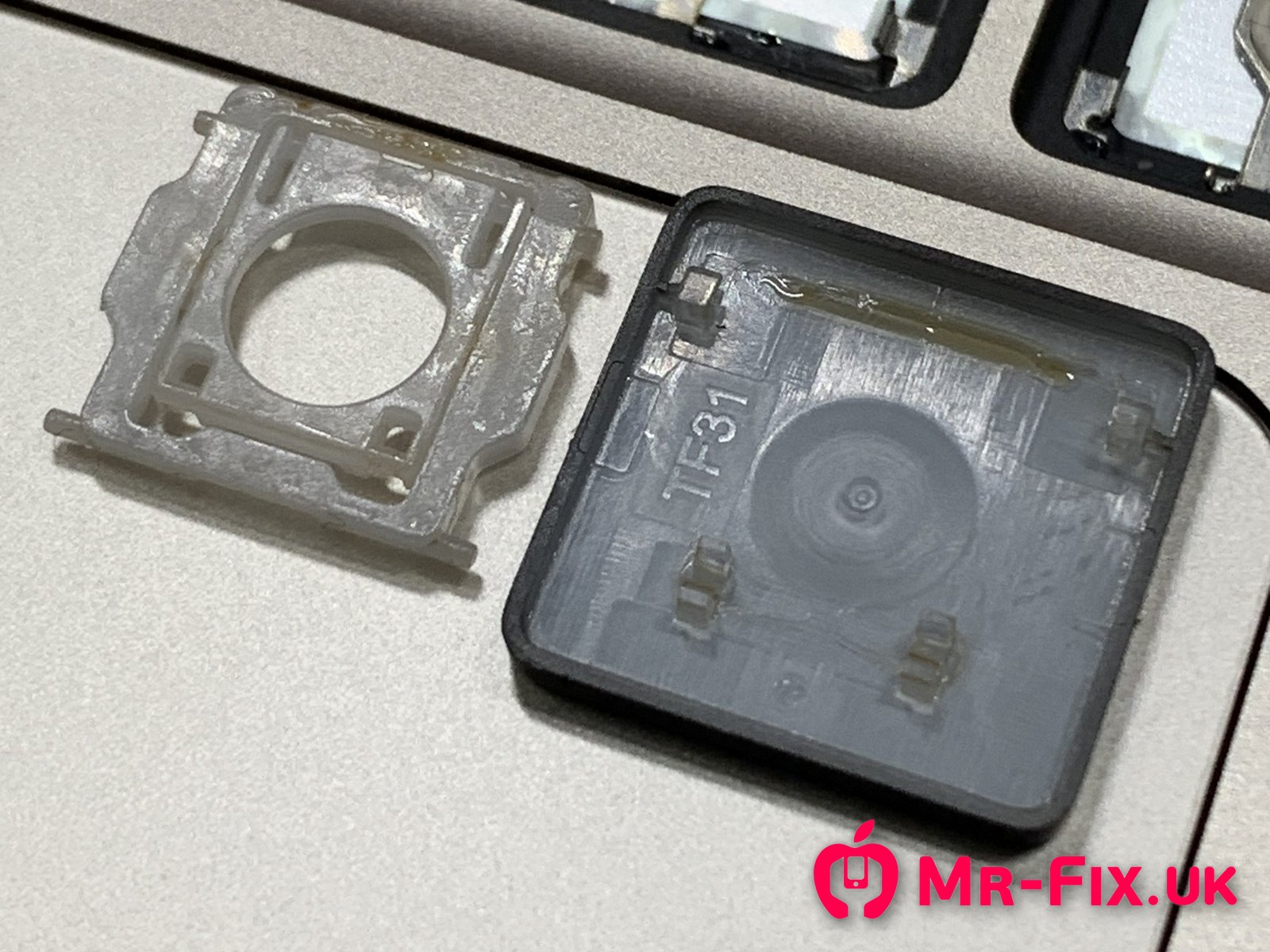
A keycap from this MacBook, turned over. The amber film along its edge and around its pins is dried sugar from the drink, similar in consistency to thick, mature honey.
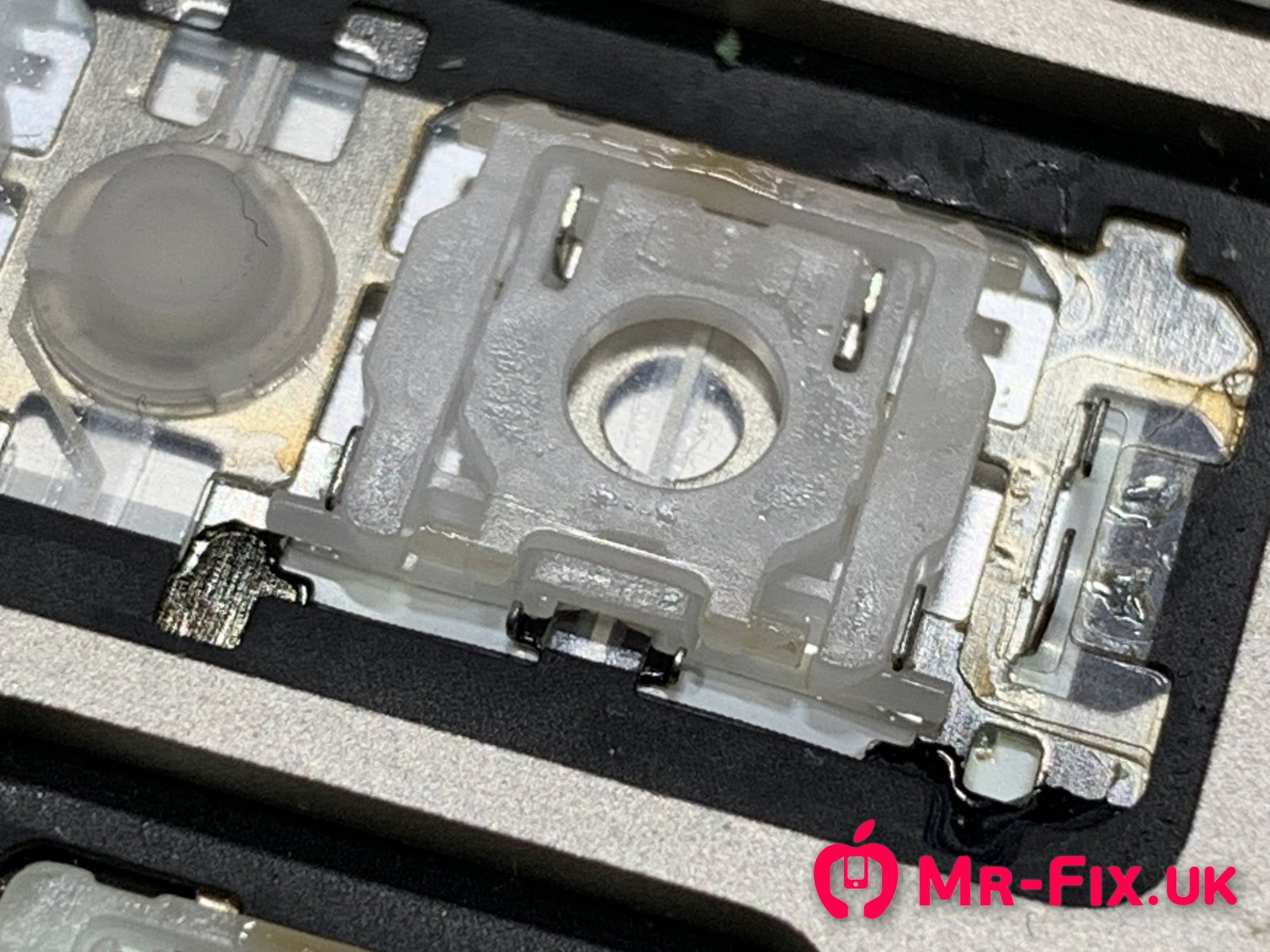
The gaps between these parts are less than a millimetre, which is why so little dirt or sugar does so much harm. The keycap pins are the most fragile part of all: break just one, and the keycap won’t stay on.
The most common way keys get broken is someone trying to take a keycap off themselves. It’s easy to underestimate how small and fragile the parts inside are. The keycap and scissor have to be fitted back precisely; if they sit even slightly wrong, pressing the key down breaks both. Unfortunately, we see it often, and a sticky key that only needed cleaning becomes a key that needs new parts.
Every way a MacBook key can fail, and how each one is fixed
| What you notice | What is usually wrong | The fix |
|---|---|---|
| Key sticky, slow or crunchy | Residue (sugar, dirt) between keycap, scissor and hooks | Take apart, clean every part, refit |
| Keycap falls off, sits crooked, wobbles or feels loose | A broken keycap pin and, almost always, a broken scissor mechanism too: when one part breaks, the next press breaks the other | New keycap and new scissor mechanism, fitted precisely |
| Key catches on one side | Bent metal hook | Hook carefully bent back into shape |
| Key doesn’t spring back, or a hook has snapped | Damaged dome or broken hook | Apple’s rule: replace the top case with keyboard. We repair the dome or hook itself, without that |
| Key works only every 2nd to 5th press, or types twice from one press | A faulty contact group on the membrane under that key | We find and repair the faulty contact, without replacing the keyboard. So far we’ve fixed this in every case |
| A whole column of keys dead (for example 2, W, S and X) | A broken track inside the membrane, so those keys have no contact | Diagnostic first; this usually means a new keyboard. We replace just the keyboard, not the whole top case, which is far better value than a new top case |
| Backlight out | The backlight unit, its cable or its connector | We replace the faulty backlight part |
Why does a sugary spill make MacBook keys sticky?
Water dries out. Sugar doesn’t. When cola, juice, an energy drink or sweet tea gets under the keys, the water there dries out fast: every keycap is small and open on all four sides, so air moves freely around it. The sugar stays behind as a thin, tacky film and glues together the parts that make each key move. Inside the laptop, it’s a different story, as you’ll see below.
Think of a fizzy drink spilled on a kitchen floor. You mop up the liquid, but the next morning your shoes still stick to that spot. Under your MacBook keys the same thing happens, only in a gap thinner than a credit card.
How we fixed this MacBook Air keyboard, step by step
We took every affected key off, and in the end every other key too, cleaned every part and rebuilt the keyboard one key at a time. Here’s the job as it happened on our bench.
1. Test and inspect. We checked every key and noted which ones stuck, which were slow and which were dead.
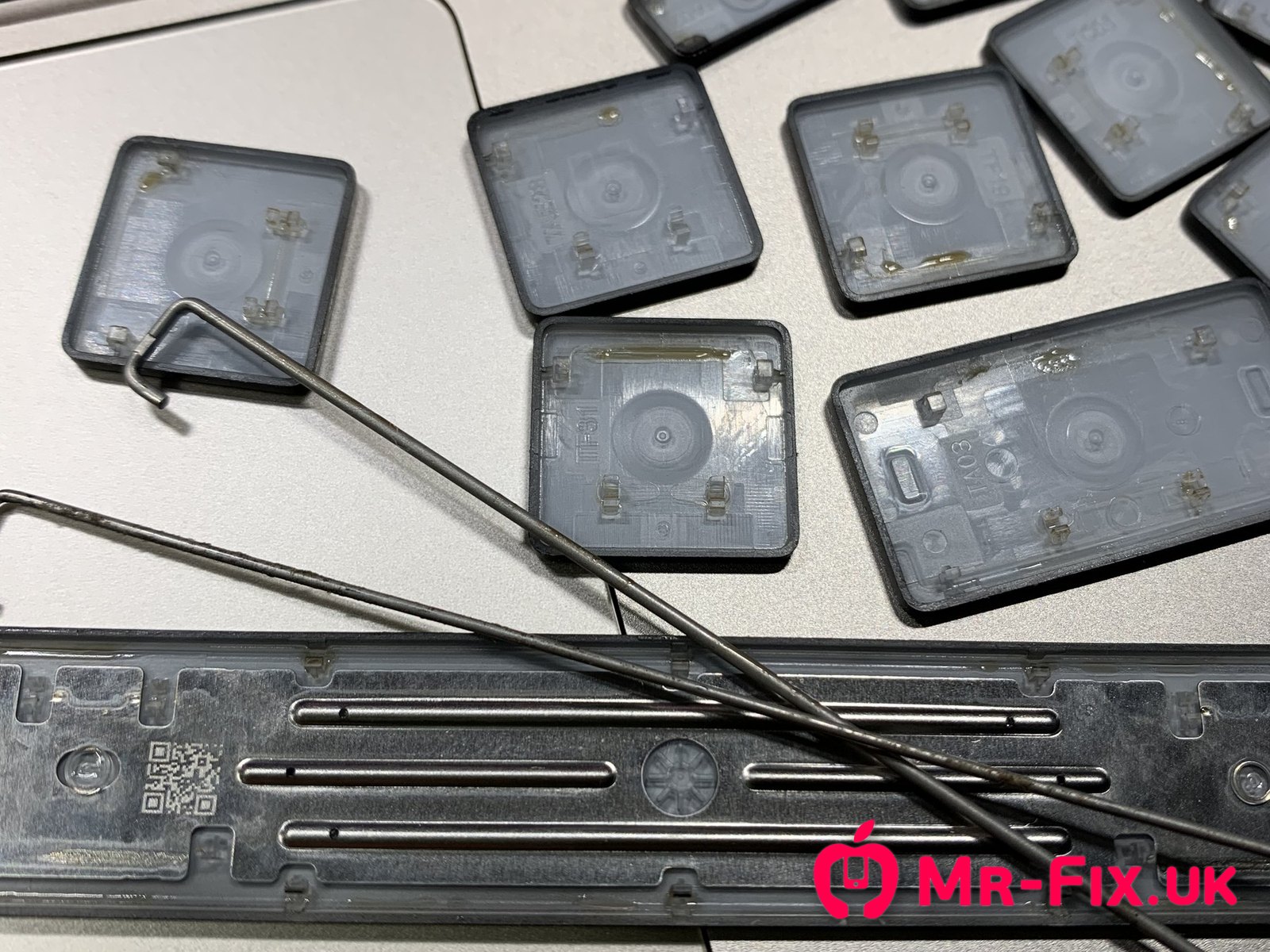
2. Remove every keycap. Each one is unclipped with fine tools at the right angle. A wrong move here snaps a pin, and a snapped pin means a key that won’t stay on.
Keycaps lifted off with fine tools. You can see the sticky film on the frames below.
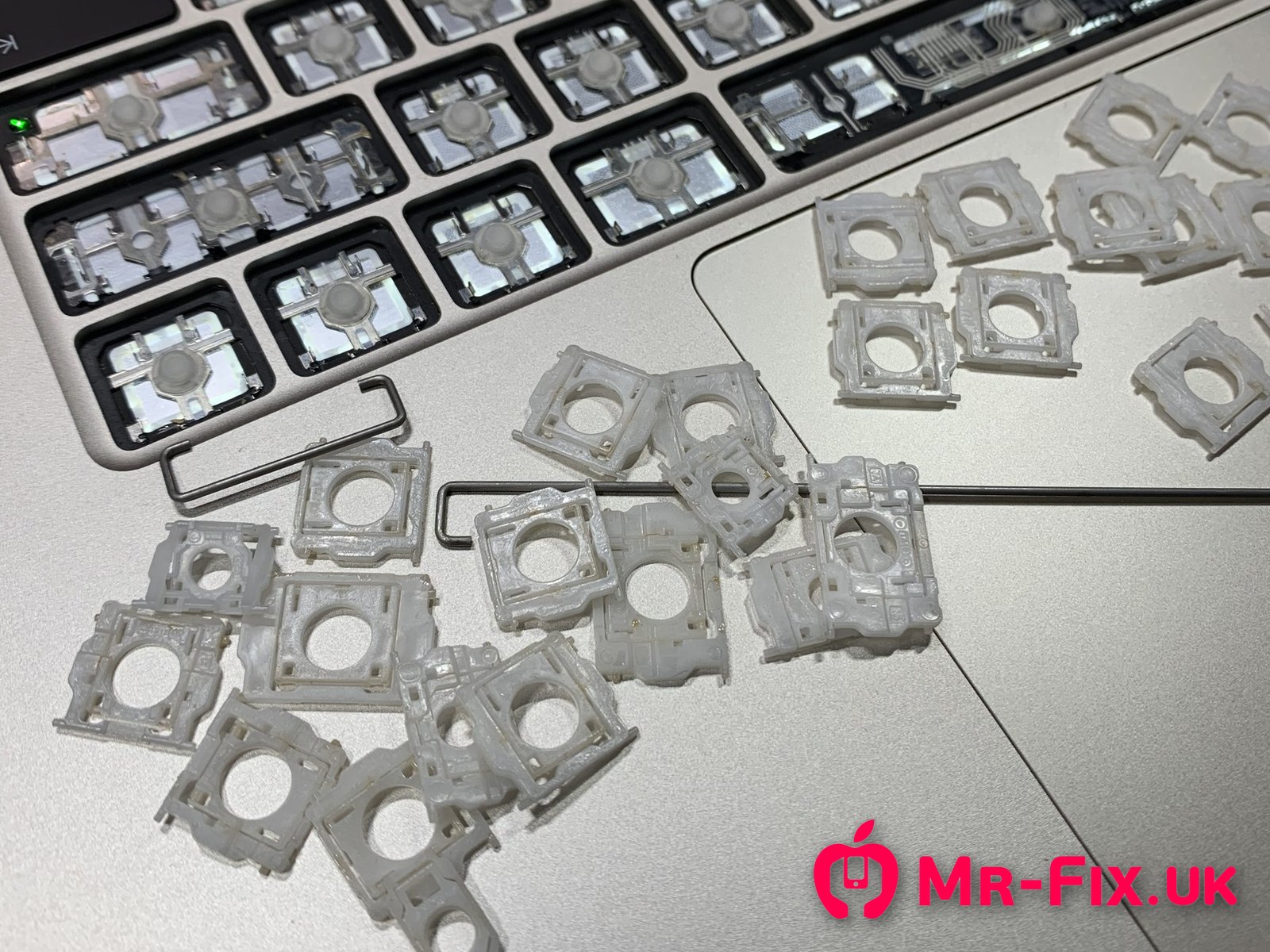
3. Unclip every scissor mechanism. The scissors come off their metal holders one by one. These are the parts the sugar was really gluing.
4. Clean every part. Keycaps, scissors, holders and the keyboard plate were all cleaned until no sticky film was left.
Scissor mechanisms unclipped from their holders, ready for cleaning.
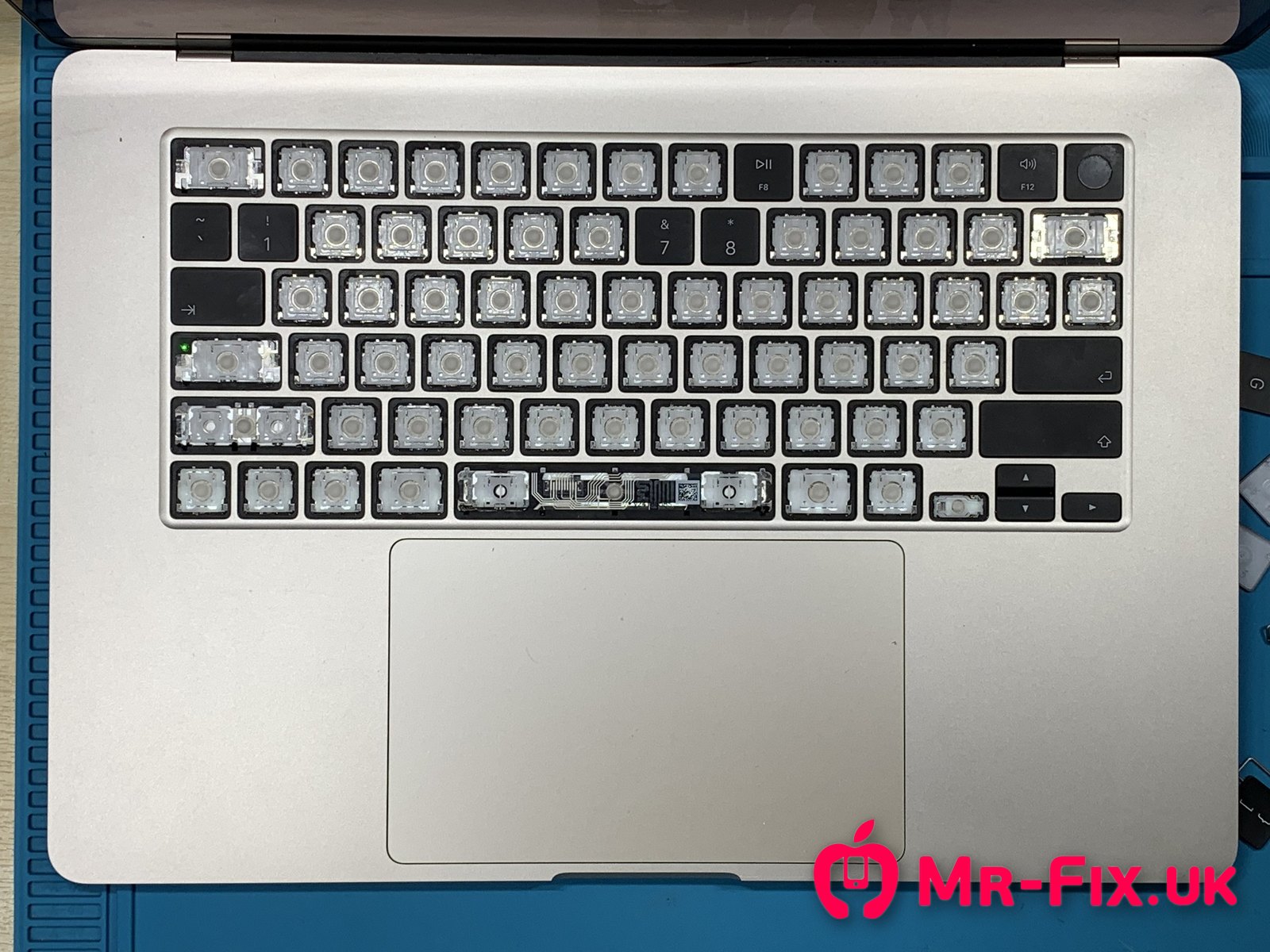
5. Rebuild, key by key. Each clean scissor goes back into its holders, then its keycap clicks on. Every key is pressed as it goes back, so a stiff one is caught straight away.
6. Test everything. Every key was tested for travel, return and signal before the laptop went back to its owner. Every key worked, and the owner was happy with a keyboard that feels like new.
Why we cleaned every key, not just the sticky ones. At first we left the keys that still felt fine. But once the rest were cleaned, they felt like new, and the untouched keys suddenly felt worse next to them. So we took those apart and cleaned them too. Now every key feels the same under your fingers.
How long it takes depends on the case: which liquid it was, how much, where it went and how many keys need servicing. A full keyboard clean like this one usually takes several hours.
Rebuilding the keyboard: clean scissors go back first, then each keycap clicks on.
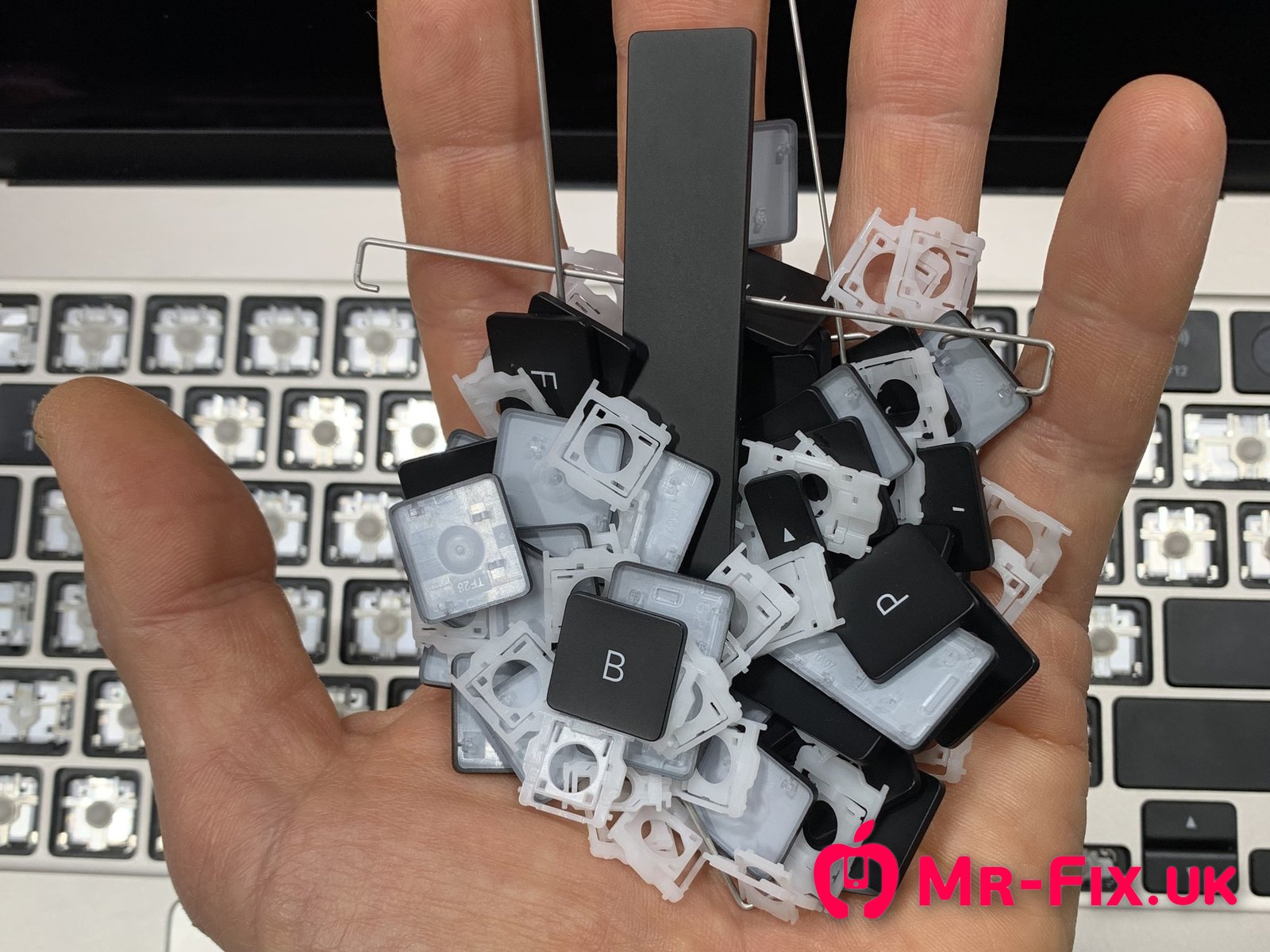
This is what a whole MacBook keyboard looks like once it’s taken apart: around 80 keycaps and 80 scissor mechanisms, and every connecting point that holds them in place is smaller than a fingertip.
Every keycap and scissor mechanism from one MacBook Air keyboard, in one hand.
Spilled a drink on your MacBook? What to do in the first 10 minutes
Power off, unplug, keep it off, and bring it to us quickly for a liquid damage clean, then a full assessment. That order matters more than anything else. Sugary liquid and electricity together can corrode the logic board (the main circuit board), not just glue the keys.
- Lift it out of the spill straight away. Every second, more liquid runs under the keys.
- Unplug the charger and shut it down. Hold the power button for 10 seconds if it won’t shut down normally.
- Unplug everything else: USB drives, hubs, mice.
- Think twice before turning it over to drain it. A tent shape, keyboard facing down, helps if the liquid is still only under the keys. But if it has already reached the logic board, it lies on the bottom cover, and turning the MacBook over brings it onto the underside of the board too. From the outside you can’t tell which case yours is, so it’s a gamble either way. What matters in every case is the next step.
- Wipe what you can see with a dry cloth.
- Keep it switched off, don’t charge it, and bring it to us as fast as possible, just as it is, for a professional clean.
Really important to knowThree facts about liquid every MacBook owner should know
We’ll soon publish a full guide to liquid damage and explain everything in more detail. Until then, these three facts matter most.
- With power on, damage starts in seconds. Think of a bike left out in the rain: without electricity, metal rusts slowly, over months or even years. Inside a laptop it’s different. This kind of corrosion is called electrochemical, and it needs just three things: metal, electricity and liquid. Every motherboard already has the first two. A spill adds the third, and as soon as power flows, the corrosion starts eating into the board within seconds.
- So take the power away, all of it. Switching the MacBook off cuts power to most of its circuits. But while the battery is connected, a few circuits still carry standby power, and the only way to cut that off is to disconnect the battery inside. The best advice we can give: bring it to us as soon as possible. The first thing we do is disconnect the battery. From then on, damage that was happening in seconds slows down to the pace of that bike in the rain: months or even years. It no longer gets worse by the minute, even with liquid still inside.
- It won’t dry inside on its own. The inside of a MacBook is almost a sealed box. Liquid runs into the smallest gaps and stays there: it evaporates from the logic board, condenses on the bottom cover half a centimetre away and drips back, or the other way round if the MacBook is turned over. Rice, a hair dryer or a heater can’t break that cycle. We’ve seen liquid still inside after weeks of all of them, and then, too often, comes the worst step: pressing the power button or plugging in the charger. The only way out is to open the MacBook completely, take the logic board out, check it and clean everything. That’s our professional internal clean.
Most important of all: don’t switch it on or plug in the charger “to check” once it seems dry. That sends power straight back through every wet circuit.
Spilled something on your MacBook? Order a liquid damage clean now
Keep it switched off, don’t charge it, and bring it to us just as it is. We take the logic board out, check it and clean everything. Drop it off at our office in Bicester, post it to us from anywhere in the UK, or use our collection service in Oxfordshire and Buckinghamshire for an extra fee.
Common mistakes that make it worse
- Switching it on “just to check”. This is the one we promised at the start. Power running through wet, sugary parts is what turns a keyboard clean into a board repair. Wait until it has been professionally cleaned and assessed.
- Rice. As you’ve just read, it can’t pull liquid out from inside a laptop. It only uses up the time that matters most.
- A hairdryer on hot. Heat bakes the sugar harder, like caramel in a pan, and can warp the plastic keycaps and scissors.
- Taking keycaps off yourself. A knife or fingernail snaps the pins easily, and a keycap pushed back even slightly out of place breaks itself and its scissor the first time you press it.
💬 Just spilled something? Send us a message with your model and what was spilled, and we’ll tell you honestly what to do next. WhatsApp us on 07493 782786.
How Apple treats a sticky keyboard, and how we do it differently
To Apple, the keyboard of a MacBook Air isn’t a separate part. It’s built into the top case, the aluminium top half of the laptop, and Apple supplies and fits the two as one piece. On some slightly older MacBooks, such as the 13-inch MacBook Pro with M1, even the battery comes as part of the top case. So going the manufacturer’s way, a keyboard fault means paying for a large, expensive assembly. We take the keyboard itself apart and fix only the parts that are actually affected.
For many years, the standard answer to a faulty MacBook keyboard was the same: even one sticky key meant a whole new top case. We saw it first-hand in the two decades Ivan ran Apple service centres.
Think different: two words, two rules at Mr-Fix
Apple’s famous slogan was “Think different”. At Mr-Fix we take those two words separately, and each one is a rule for how we work.
Think. Information is all around us now, like dust. What people tell us, what we read, what we gather from around the world: on its own, it’s just litter. It becomes knowledge only when you think it through and draw your own conclusions. We’d encourage you to do the same with everything you read, this article included.
Different. Then do it your way. Choose, or change, the approach that fits your own needs, rather than the one-size-fits-all answer.
Here’s a simple question: which is better, a van or a Mercedes-Benz with every luxury option? There’s no right or wrong answer. It depends entirely on your aim. If you’re moving home, you’ll choose the van, and the heated leather seats won’t help you carry a single box. By the way, we also do removals across Oxfordshire and Buckinghamshire, with the same approach and the same attention to the things that matter.
Keyboards work the same way. A new top case is the standard answer. But if your aim is a keyboard that works properly again, and the parts aren’t broken, cleaning and rebuilding the one you already have is often the better fit.
Clean the keyboard or replace it?
If the keys are only sticky and the parts aren’t broken, a professional clean is usually the better choice. A “keyboard replacement” elsewhere usually means the whole top case. At Mr-Fix we offer every option there is, and you choose:
- Fix your keyboard. We take it apart, clean it, and replace scissor mechanisms, keycaps or whatever else is needed.
- Replace the keyboard only. Everything else stays original, including the backlight and, of course, the top case.
- Use a part from a donor MacBook. We can usually offer an original keyboard or top case taken from another MacBook of the same model.
- Replace the whole top case the manufacturer’s way, with the part ordered directly from Apple.
Whichever you choose, we’re happy to help you make it happen.
Included in our keyboard deep clean
- – Test and inspection of every key
- – Every affected keycap and scissor mechanism removed with the right tools
- – Keycaps, scissors, holders and keyboard plate cleaned
- – Keyboard rebuilt key by key, and every key tested
- – 3-month warranty, with an optional 1-year extended warranty
When the keyboard really needs replacing: only when the membrane, the circuit layer under the keys, is damaged. The usual sign is a whole vertical row of keys, such as 2, W, S and X, not working at all. Everything else can be repaired without a new keyboard, and that’s around 90% of the keyboard faults we see. We’ll tell you straight after the diagnostic, before any work starts.
Not sure if it’s only the keyboard? We start with a diagnostic and tell you everything relevant. It costs £50, and it’s free if you go ahead with the repair. A short video or photo of the problem sent in advance helps a lot.
FAQ
Usually, yes. If the keys are sticky but the keycaps, scissor mechanisms and backlight aren't broken, a professional clean fixes it. We remove the affected keycaps and scissors, clean every part and rebuild the keyboard key by key. If anything is broken, we tell you before starting.
Because only the water dried. The sugar from the drink stays behind as a tacky film on the keycap pins, scissor mechanisms and rubber domes, and it glues those tiny parts together. It won't go away by itself.
No. Apple's standard limited warranty doesn't cover liquid damage. AppleCare+ covers accidental damage, including spills, with a £229 excess for other accidental damage on a MacBook Air. Check your cover first, and you'll see that a professional clean at Mr-Fix usually costs less than that excess.
For one slightly sticky key, a careful wipe around the edge sometimes helps. Removing keycaps yourself is risky: the pins snap easily, and a keycap refitted even slightly out of place breaks both the keycap and the scissor mechanism the first time you press it. We see it often. For several sticky or dead keys after a spill, it's safer to have it cleaned professionally.
No. Rice doesn't draw liquid out of a laptop, and Apple advises against it. Switch it off and unplug it. Then, whatever else you do, don't switch it on or charge it, and bring it to us for a professional clean as fast as possible, just as it is.
In our experience, if liquid has got into the keyboard, Apple's answer is to replace the whole top case with keyboard. When the parts aren't broken, we clean and refit the originals instead.
It depends on the case: which liquid it was, how much was spilled, where it went and how many keys need servicing. A full keyboard clean like the one in this guide usually takes several hours.
We price it on the time the job needs and any parts required, which depends on how many keys are affected, the MacBook model and the fault. In around 90% of cases it's between £50 and £200. For comparison, a new top case at Apple can cost around £450–£600, depending on the model. A diagnostic costs £50 and is free if you go ahead with the repair.
Yes. Sticky keys on HP, Dell, Lenovo, ASUS, Acer, MSI and other laptops are fixed in much the same way: the affected keys come off, every part is cleaned and the keyboard is rebuilt. Only small details differ, such as the shape of the keycap holders or whether there's a backlight.
Yes. Every keyboard repair carries our 3-month warranty, with an optional 1-year extended warranty.
We always advise it. Liquid that reaches the logic board can cause far bigger and more expensive damage than sticky keys. Only in rare cases, when you know for sure that very little liquid got in, can it be skipped, and even then we recommend it.
Sticky keys on an HP, Dell, Lenovo or other laptop?
Almost the same fix works on any laptop. Our team at Mr-Fix cleans sticky keyboards on HP, Dell, Lenovo, ASUS, Acer, MSI and other brands in much the same way as on this MacBook. The differences are small: keycap holders of a different shape or size, and some keyboards have no backlight. None of that changes how we deal with the problem, the physics behind it, or what sugar does under the keycaps. If your laptop’s keys are sticky after a spill, we’re happy to help; see our laptop repairs in Bicester.
The one thing to remember
The drink dries. The sugar doesn’t. A sticky MacBook keyboard won’t fix itself, but it can usually be cleaned rather than replaced, if it’s switched off quickly and taken apart by someone who knows how fragile those tiny pins are. That’s exactly how this MacBook Air left our bench: every key clean, every key working.
The way we work at Mr-Fix
Nowadays, crypto can feel stronger than real money, and likes have become what matters most for a product or service. In the same way, trust and reviews have become a business’s real currency today, and a far better measure of value than price alone. We bet on quality, on honest reviews, and on making every customer happy who truly wants the best for their device.
Book your MacBook keyboard repair at Mr-Fix
Sticky, slow or dead keys after a spill? We clean and rebuild MacBook keyboards, with a 3-month warranty on every repair. See all our laptop and MacBook repairs in Bicester. Drop it off at our office in Bicester, post it to us from anywhere in the UK, or use our collection service in Oxfordshire and Buckinghamshire for an extra fee.
Thinking of becoming one of our customers?
Have a read of our Google reviews. Do the people who chose Mr-Fix sound like you? If you’d like an experience so good that you’d want to write a review just like theirs afterwards, we’d love to look after your MacBook.


Related guides
- MacBook LCD troubleshooting: repair options without replacing the whole assembly
- PS5 HDMI port replacement: why cheap can cost more
Sources
- The Apple Wiki: MacBook Air (15-inch, M5), model A3448
- Apple Support: MacBook Air (15-inch, M5) orderable parts
- Apple Support: MacBook Air (15-inch, M5) top case with keyboard procedure
- Apple Support: Mac laptop keys and scissor mechanism procedures
- Apple Newsroom (2022): Self Service Repair for Mac notebooks
- Apple Support: why not to dry devices in rice
- Apple UK: warranty terms
- Atlantis Hardware Centre: MacBook keyboard repair and top case costs
Mr-Fix is an independent repair service and is not affiliated with Apple Inc. MacBook and MacBook Air are trademarks of Apple Inc. “Think different” is a slogan of Apple Inc., quoted here for discussion. Mercedes-Benz is a trademark of Mercedes-Benz Group AG.